Tutorial on How to Connect H9 Max Smartwatch to Phone
Here is a tutorial on how to connect your H9 Max smartwatch to phone, see the steps on how to setup your smartwatch with the Android phone. The smartwatch is using the HRYFine app that is available in Android and iOS platform, our tutorial below focuses on Android smartphone, but similar steps is also for iOS platform.
How to Connect H9 Max Smartwatch to Phone
Table of Contents
- Search and Download the HRYFine App for Android smartphone, you can search directly in Google Play Store, or just search the QR code in the smartwatch as well as the user manual.
- Tap on the HRYFine App, to download the app on your phone, it will automatically install the app on your phone.
- Open the App, once the download is completed, and installed.
- It will ask for permission, it will ask to access your physical activity. It will also ask Phone Call Logs, Access to Contacts, Nearby Devices, Make and Manage Phone Calls, Send and View SMS Messages, Access Photos and Media on your Device.
- The app will ask you to Register, or Login, it will also require you to Agree to Privacy Policy. If you don’t want to Register, you can Skip the login.
- It will provide an account login, and password. Remember to record the login as well as password.
You Might Want to Read: AOLON Pulse Smartwatch
- Complete your Profile
- Agree to Notification Permission (look for HRYFine App, allow permission)
- There are at least 4 Menus, to add your smartwatch, tap on the Me section, then select Add device
- Allow other permission for the smartwatch such a Location Permission
- Also Allow to Activate Bluetooth if not yet activated
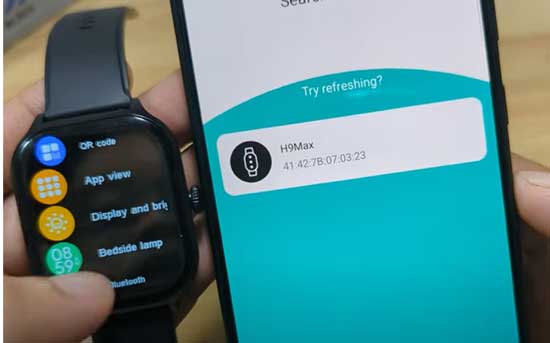
- Then Add Device again, it will now search for your smartwatch
- When the smartwatch appear on the dashboard, select the smartwatch
- The app will show if you successfully connected to your smartwatch.
Basic Settings for your Smartwatch
Configuring Message Notifications
Go to Me Menu, Select Device Settings, then tap on Message Notifications, you can select the app that you can to receive notifications. Toggle it on or off.
To Change the Language
Go to Me Menu, Select Device Settings, then tap on Language Settings, select the language that you want to use, or you can just set to Follow System. Meaning it follows the language of your phone, if what is the language of your phone, your smartwatch will have also the same language.
Active Raise to Wake
Go to Me Menu, Select Device Settings, then select Raise your Hand to Brighten the Screen.
