Viwa Fit Setup Complete Tutorial on How to Connect to Phone
We here a tutorial on how to setup your smartwatch with Viwa Fit app, the application is available on Android, and iOS platform. Our tutorial below is for Android smartphone, but almost the same process with iPhone. If you want to connect your device to your phone, check out the step by step tutorial below on how to connect the smartwatch to phone.
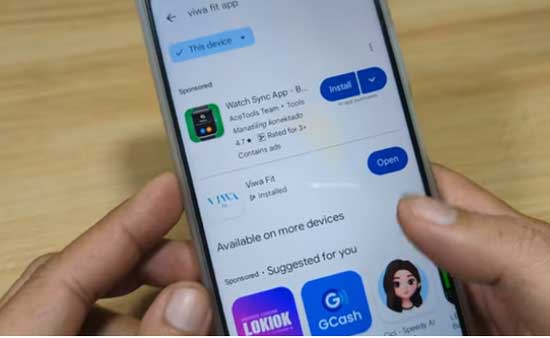
Viwa Fit Setup on How to Connect to Phone
- Scan the QR code of the Viwa Fit app or search the name of the application on Google Play Store. Just search Viwa Fit on the search bar.
- Tap on Install to download, and install the app on your smartphone
- Open the app installation is complete
- Agree to Privacy Policy and User Agreement
- The app before you can pair the device will ask for several permissions
Below are the list of permissions:
- The app will ask to allow Viwa Fit to access this device location, tap “While using the app, or Only this time”.
- Another permission is “Viwa Fit will access your Physical activities”.
- Additional permission is “Access to Contacts”, allow if you want to use the Bluetooth call of the wearable.
- It will also ask to find, locate and determine relative position of nearby devices
- Permission to Send and Receive Notifications
- Make and Manage Phone calls
- There is a login form where you can Register using your email or skip login. Don’t forget to agree to “I have read the user Privacy Policy, and User Agreement”.
- The app will provide a temporary password, and account number, tap on OK
- Set your Profile, Name, birthday, weight, height
- Another permission that will be ask is the permission for allowing the app to access notifications
- Select “My” menu section
- Tap on “Add Device”
- If the smartwatch appear on the search Dashboard, select the smartwatch
- The app will now try to connect with your smartwatch
- If the connection is successful, the smartwatch MAC address and name will appear on the app.
You are Now Connected
Setting up the Basics for Viwa Fit App
Enabling Notifications
Allow notification access if not enabled
Go to My Section, select Device settings, then Message Reminder, then enabled the app that you can want to receive notifications.
It is also the section for Dial reminder, SMS, and other apps such as Messenger, WeChat, WhatsApp, Instagram, and more.
You Might Want to Read: Huawei Watch GT 6
Set the 12 Hour format time
Go to Device Settings, then select 24 Hour Clock time, Toggle on, toggle off to enable 24 hour or 12 hour.
Setting Language
Go to Device Settings, then select Language Settings, choose the language that you want to choose.
