Tutorial on How to Connect VeryFit Smart watch to Phone
If you have the a smartwatch that is powered by VeryFit app, we have a tutorial below on how to help you setup your wearable with the support app. Smartwatches that is using VeryFit, or what we call VeryFit smart watches, can be paired with Android or iOS platform or iPhone. Although it is very easy, to pair, we have a tutorial below, a step by step guide for those who are having a hard time pairing the wearable to phone.
How to Connect VeryFit Smart watch to Phone
Table of Contents
- Scan the QR code of the app “VeryFit” or you can search it directly on Google Play Store. With regards to QR code, it is available in the User Manual, smartwatch or packaging.
- Tap on Install to download the application, it will automatically install the app on your smartphone, when the download is complete. As the time of this writing, it is around 163 MB in size, and with over 5 million downloads.
- Open the VeryFit App
- Tap to Agree to User Agreement and Privacy Policy
- Login or Register an Account, you also have an option to choose Visitor Mode
- Enable Permission for turning on Location Permission
- Also allow VeryFit to Access Devices location, choose “While Using the App”, or “Only this time”.
- Select your Country or Region
- Set your Profile by Setting an Avatar and NIckname, also includes the Gender, Birthdate, Height, and Weight
- Veryfit will ask you to set the Time, and Date Format, this includes the Week.
- Set Goal Settings
- You will be prompted with the Dashboard for Adding your wearable. Option are: Watch/Bracelet and Smart Ring. There is also an option for Health section, Body Fat/Weight scale and Blood Pressure monitor.
- Tap on Smartwatch/Bracelet
- Enable Nearby Device Permissions, includes Activating Bluetooth
- Also allow VeryFit app to Find Connect to and Determine the relative position of nearby devices.
- The VeryFit App will now search for your wearable, tap on the smartwatch if it appeared on the Search Dashboard.
- Depending on the smartwatch, a pop-up notification will ask to bind and connect with the support app.
- Your VeryFit Smart watch is now Connected
You Might Want to Read: iTel Horizon Smartwatch
Setting the Basics of VeryFit App
To set and enable the options to receive notifications, tap on “Device” menu, then select “Notifications”, then toggle on for the selected social apps. If the app as for Notification permission, just allow to Receive Notifications.
Some of the supported apps are Facebook Messages, WhatsApp, X, there is also a support for SMS.
Downloading Watch Faces
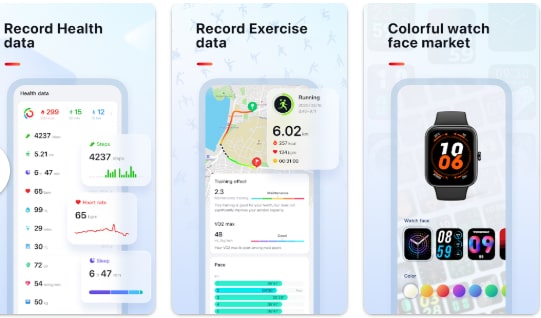
To download a watch face, go to watch face, go to “Watch Face Market”. Select from the list of watch faces, then tap to download and apply to your wearable.
Problems with the Setup
- Unstable Connectivity
- VeryFit App cannot find the Smartwatch
- Smartwatch is available but will not Pair
If you are experiencing the above issues, there are some steps that you can do to fix the issues.
- Restart both Devices
- Remove any devices that is using the Bluetooth Connectivity
- See compatibility requirements
