Tutorial on Glory Fit Smartwatch – How to Connect to Phone
Glory Fit smartwatch are smartwatches that is using the Glory Fit as the support app. Usually these are unbranded smartwatches with this support app. But take note that it is not exclusive for unbranded wearables, other popular brands are using the support app for their smartwatches.
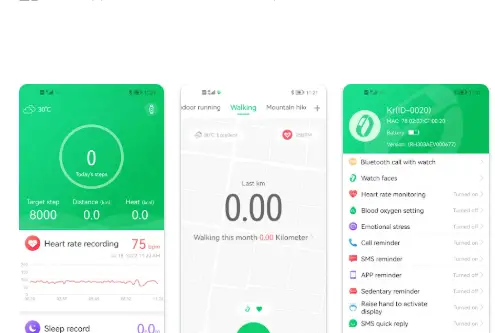
If you want to connect your wearable, here is a tutorial on how to setup your Glory Fit Smartwatch to phone, the tutorial is for Android smartphone, but it is also similar to iOS platform.
Glory Fit Smartwatch – How to Connect to Phone
- Search and download the Glory Fit app on Google Play store. You can also scan the QR code of the app, usually available on the;
- User Manual
- Packaging
- Smartwatch Settings
- Smartwatch Website
- Tap on Install to download the app, once the download is completed, it will automatically install the application once the download is complete.
- Open the App
- Agree to User Agreement and Privacy Policy
- Register an Account, you can use your email address or use the third party login (Google Account) or Ignore to go directly to the dashboard of the app
- The app will ask to set the Glory Fit app to run in the background for smooth operation (Go to Set). You can also ignore this action if everything works smoothly
- Select your Gender, Set your Height, Set your Weight, Age, Target Step as well as Temperature Unit.
- On the Dashboard, select Device Menu, then tap “Select Device”.
- Before you can pair your wearable, the app will ask to “Access Location information search connected devices permission”.
- Glory Fit will ask to Access the devices location, allow the permission
- Allow Glory Fit to find, connect to and determine the relative position of nearby devices
- The Glory Fit app will search for your wearable
- Tap to Select the smartwatch and pair it with the support app
- It will ask for Bluetooth pairing to complete the connection, tap to pair
- Additional permission will be ask such as “Allow Access to Contacts”
- If there is a successful connection, you will see the name of the smartwatch on the dashboard, the mac address and battery life of the device
Basic Setup
Synchronize Contacts – tap Bluetooth call with Watch, then select synchronize contacts to add phone numbers, just enable permission to access Contacts if not enabled
Enable SMS Reminder – select Device Menu, then select “SMS Reminder” enable permission for SMS notifications
You Might Want to Read:iTel Horizon Smartwatch
Downloading Dials – to download watch faces or dials, go to Dial/Watch Faces Menus, then select the gallery, download the desired watch faces.
Troubleshooting Issues with Glory Fit App
Initial Setup, if you are having an problems with the connection for the Glory Fit app, please check the compatibility requirements for the smartwatch. Usually some of the complaints regarding the connection are; unstable connectivity after paring, cannot find the device when setting up, as well as not receiving notifications or Bluetooth call when connected.
If you experienced the above issues, please check the following details
- Check compatibility requirements
- Clean the Bluetooth connection, remove any devices that is using Bluetooth
- Restart your smartwatch or the smartphone
- Forget this device if the smartwatch is already listed on Bluetooth network
