Tutorial on How to Connect Senbono IDW25 Smartwatch to VeryFit App
Here is the tutorial for the pairing of Senbono IDW25 smartwatch to the VeryFit app on Android smartphone. Pairing the smartwatch is pretty easy, you have an option to register or activate the Bluetooth call or notification options. See the step by step tutorial below on pairing your smartwatch.
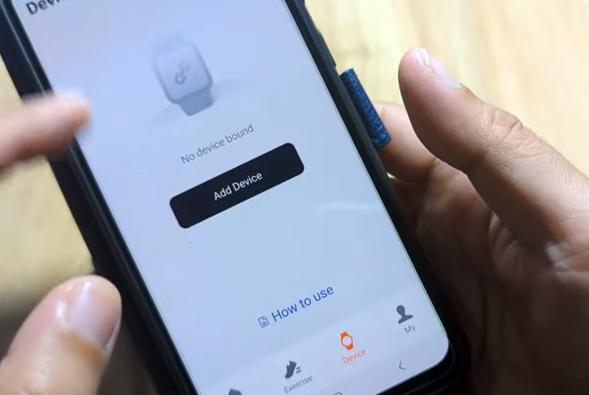
How to Connect Senbono IDW25 Smartwatch
- Search and download the VeryFit App on Google Play Store. You also have the option to scan the QR code of the app, that is usually available in the user manual. If you happen to lost the user manual, available QR code is available in the packaging or the settings of the smartwatch.
- Tap on Install to download, and install the app no your phone, once downloaded it will automatically downloaded to your phone
- Open the VeryFit App
- A Statement User Agreement will appear, check the details
VeryFit app allows you to bind, manage and control your smartwatch devices, as well as view data, etc.
Tap to Agree to indicate that you have read, and agree to the terms in the User Agreement and Privacy Policy
- Tap, I Agree to Continue
- A welcome dashboard will appear, asking you to login/register or direct to visitor mode
- Once you continue, whether its Visitor Mode or via registration, the app will ask for permissions
- Agree to Permission for turning on location permissions, “Enable Permissions”
- Allow VerFit to access this devices location, pick while using the app or only this time
- Select your Country or Region
- Set and Avatar or Nickname
- Input Personal information such as Gender, Birthdate, Height, Weight
- Set also the Time, and Date Format, then Next Step
- Set Goal Settings, then Next Step
- It will ask you again to register of you skip registration, but you have still have an option to do it later.
- You can now Bind your Device, by adding the device type, options on the wearable are :
- Watch/Bracelet
- Smart Ring
- Select Watch/Bracelet Option
- The app will ask you again to turn on location permissions, select Enable permissions
- It will also ask to determine the relative position of nearby devices
- On the Pairing Device area, the VeryFit App will search for your Senbono IDW25 Smartwatch
- Select the Senbono IDW25 Smartwatch on the search board, if successful, it will show bound successfully.
You are now Connected to the Smartwatch
Note: The smartwatch will ask for several permissions, including running the app in the background for stability, as well as other permission for phonebook, notifications, and more.
Basic Setting for your Smartwatch
- Setting Device Language, Select Follow System, or set the English Language
- Set Unit Format, such as Temperature, Pool Length, Distance
- Set Notification Reminder, toggle the app on for notifications, enable also call alert
- Before you can set it to on, you need to Allow Notification access for VeryFit, “Allow”
- Also enable Permissions, for Enable Call history, Contacts, Calls
- Allow also Veryfit to access your phone call logs, as well as contacts, and manage phone calls. Please take note that you have an option not to enable permissions if you are not using the Bluetooth call or message notification feature.
- Other permissions are turning on health tracking.
You Might Want to Read: Kospet Magic R10 Smartwatch
Options for your Smartwatch in the VeryFit App
- Setting Notifications
- Sport Setup, option to enable intelligent exercise recognition
- Select the Sports Type
- Alert Upper Limit of heart rate during exercising
- You can also set the Alexa AI Support on the smartwatch
- Enable Weather Report
- Download Free Watch Faces or Buy Discounted Watch faces for your smartwatch
