Tutorial on How to Connect HiWatch Pro App to Android Phone
Here is a tutorial for those who have a smartwatch is using the HiWatch Pro application. The tutorial below is for Android smartphone, but similar steps are also for iOS platform. If you want to pair your smartwatch with the support app, you can follow the steps below, to properly pair your wearable with the Hiwatch Pro app.
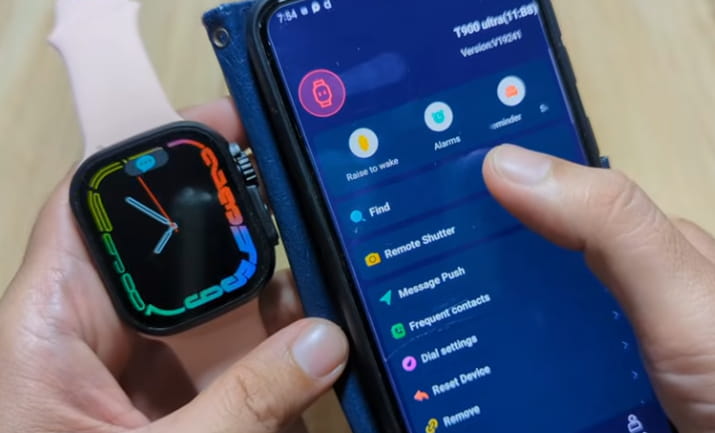
How to Connect HiWatch Pro App to Phone
Table of Contents
- Search and Download the support app HiWatch Pro application for Android smartphone. The application is also available on iOS platform or iPhone. As of this writing, it is 39 MB in size, and compatible with Android 8.0 and above.
- Open the HiWatch Pro application
- Agree to Terms of Agreement and User Privacy Policy
- Now, the support app will ask for permission; “Access to Devices Location”
- You are now on the Dashboard of “HiWatch Pro”.
- To pair your smartwatch, tap on the “Set” menu.
- Select ‘Bind Devices to Experience more Features”.
- The app will as for permission, to activate Bluetooth connectivity
- “Bluetooth Connection Permission”
- “Bluetooth Scanning Permission”
- “Bluetooth Broadcast Permission”
9.HiWatch Pro will ask for permission
“Determine the Relative Position of Nearby Devices”, tap to Allow
- Open Location Services/Location Information (Activate Location Services)
- The app will now search for your smartwatch. If your smartwatch is activated, HiWatch Pro will be able to locate your smartwatch. Tap on the wearable to pair it with your smartwatch.
- You are now Connect to your Smartwatch
Note:
Some of the permission for the wearable is optional, especially for notifications, as well as Bluetooth calls. But some of the permission is required, such as location permission, nearby positioning.
You Might Want to Read: How to Change Time in Laxasfit Smart watch
Basic Setup
Push Notifications – to properly set the smart notification, go to “Set”, then tap on “Message Push”. If it ask for permission “Send you notifications”, allow to enable.
Some of the supported apps by HiWatch Pro are:
- Calls Remind
- SMS Remind
- WeChat Remind
- QQ Remind
- X
- Line
Frequent Contacts
If you want to add phone numbers, you can tap on the “Set” menu, then select ‘Frequent Contacts”. Add the phone numbers from your phone to your smartwatch. If the connection is OK, your smartwatch connection is set properly.
Dial Settings
If you want to download additional watch faces or dials or your wearable. You can go to the support app, tap on Dial Settings, then select the desired dial from the gallery. Depending on the smartwatch, you can download 1 or more for your device.
Issues with the Pairing of the Wearable
If you are having an issue with the pairing of the wearable to the HiWatch Pro app, try to check the compatibility. See also the Bluetooth connection, if there are other devices that are using the connection. Remove any devices that are connected before pairing, also reset or restart your wearable or your smartphone, and pair it again.
If everything has been done, you can reinstall the support app, download the app again, as much as possible the latest version, then start pairing the smartwatch again.
Download Link for the Support App here
