How to Connect your ZT Pro10 Smartwatch to Phone
Here is a tutorial on how to connect your ZT Pro10 smartwatch to phone. See the step by step guide on how to pair your wearable with the ZTFit App, and your Android smartphone. The tutorial below is for Android smartphone but you can also follow the same setup with your iOS devices, or Apple iPhone.
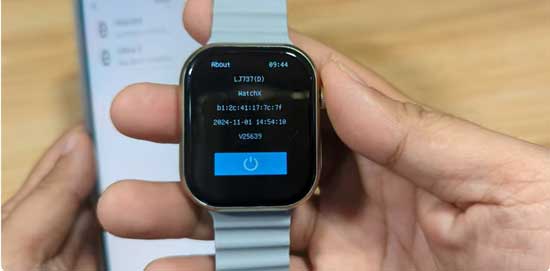
How to Connect your ZT Pro10 Smartwatch
- First download the ZT Fit support app, you can either search the app on Google Play Store or App Store. Or you can scan the QR code of the app available in the user manual, packaging or in the main menu or settings of the smartwatch.
If you are going to scan the OR code, it will open a website, with link to the app store or Google Play. Once you select/tap it will lead you to the direct app store page of the ZitFit App.
- Tap on install to download the ZTFit app, it will automatically download the app on your smartphone.
- Open, once the installation is complete
- Agree to Privacy Policy and User Protocol
- Agree to Permission
“Allow ZTFit to Access this Devices location”
- On the Dashboard, there are at least 4 main menus. Home Devices, Activities, and Profile. Select the “Device” menu, to pair your smartwatch.
- Tap on “Go to Bind”, then Agree to the permission, “Allow ZTFit to find, connect to and determine the relative position of nearby devices? Tap to Allow.
- It will now scan the smartwatch, select your smartwatch on the dashboard if found. If there is no issue, it will completely connect/pair the smartwatch with your phone.
While pairing, it will established connect with Bluetooth, Time, User Settings, Target Settings.
Basic Setup of ZTFit App
Setting Push Notifications
On the Dashboard, go to Message Push, tap on the call reminder, or SMS reminder if you want to enable push notifications for these functionalities. It is also included with Facebook, Line, WhatsApp or Instagram, you can activate if you want to enable push notifications. If the function ask for permissions, allow permission for push or message notifications.
Adding Phone numbers
On the Dashboard, Go to Frequent Contacts, tap on the plus sign, tap on the import logo to add your phone number to the wearable.
Other Options available in the ZTFit App
Setting alarms, synchronization of time, and changing to 12 hour to 24 hour, as well as downloading watch faces, and custom wallpaper for the smartwatch.
