How to Connect your Smartwatch to Phone 2025
Here is a step by step guide on how to connect your smartphone to phone, a tutorial on how to setup your smartwatch easily with your phone, particularly with the support app.
There are at least three stages when setting up your smartwatch with the support app, or your phone. Check out the simple guide, on how to setup your device with the support app.
Search and Download the App
Table of Contents
- Before downloading the app, check first the compatibility of your phone with the support app, you can check the version of the app and its compatibility requirements.
- Scan the QR code of the app on the smartwatch, or the user manual, it is also available in the box, depending on the smartwatch brand. Or if you know the name of the app, you can just search it on the app store.
- Once the download is complete, open the application
Setting the App, and Permissions
- Whether you are using an Android smartphone, or iPhone, when you open the app it will always ask for the “User Agreement and Privacy Policy”. You need to agree to continue pairing the app.
- Depending on the app, it will also ask for several permissions, these permissions are:
- Allows the app to send notifications to your smartwatch.
- Access to your physical activity data like steps, distance, and heart rate.
- Allows the app to access your contacts.
- Grants access to your phone’s camera.
- Allows the app to access all files on your device.
- Access to photos and videos on your device.
- Allows the app to send and receive SMS messages.
- Allows the app to read and write to your phone call log.
Additional Permissions
- It will also ask to activate your Bluetooth as well as permissions to “Find Nearby Devices”
Note:
Again permissions sequence is depending on the application, and the OS, as well as the smartwatch, some may appear when you open the app, others will notify you when you start to pair your wearable.
Pairing the Device
- Search the smartwatch on the search area, you can either scan the QR code on the smartwatch or just do the usual search device on the dashboard.
- Once the smartwatch appear, tap to pair it with your support app, pairing it with your phone
Note: There are smartwatch models that notifies you upon pairing, and a notification on the smartwatch appears asking you to agree to pairing. Check if the number that appears on the app is the same with the app on your phone.
- When your smartwatch is successfully connected with your phone, you can see the battery meter, as well as the mac address of the smartwatch on the device dashboard of the app.
You Might Want to Read: Microwear Watch Ultra
Basic Setup
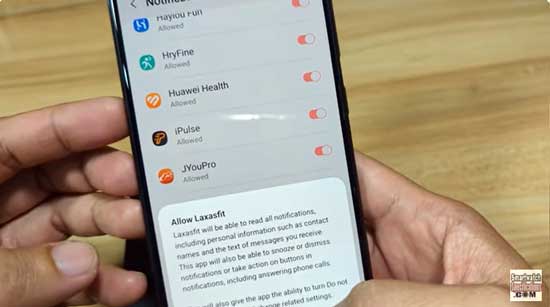
Even though you already activated the push notifications, sometimes the list of apps available is not yet activated. Depending on the app, you can access this features at “Push Notifications”, or “Message Notifications” menu. You can toggle the app on or off to receive notifications.
You can also download a new watch face, a dial section, or watch face gallery is always available and usually the first menu that you can access on the wearable.
