Tutorial on How to Download Mp3 files to Amazfit BIP Max Smartwatch
With the Amazfit BIP Max Smartwatch, there are two options for playing an audio or music, the first option is via Bluetooth music control function, and the other one is on the built-in music player on your phone.
The Bluetooth music control function, you can control the built-in music player on the smartphone, Spotify as well as Youtube, and Youtube Music. All you need is to open the Audio Control menu on the smartwatch, and open Youtube app or Spotify. You can now control the music on these applications, play, pause, go forward, go backward, adjust the volume, and see the title as well as the singer of the song.
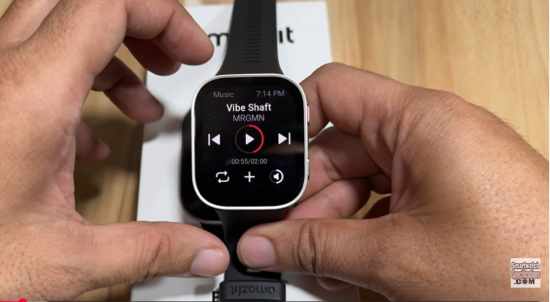
Talking about controlling/listening to Mp3 files on the smartwatch, the Amazfit BIP Max smartwatch has a separate function for this, the Music menu. The Music menu is a built-in music player on the smartwatch, to be able to listen to your favorite MP3 file, you need to first download an MP3 file on the smartwatch with the help of the Zepp app. We have a tutorial below, check out the details on how to download an MP3 file.
How to Download Mp3 files to Amazfit BIP Max Smartwatch
- Open the Zepp file app
- Tap on “Device” menu
- Go to Device Application Settings
- Tap on Music
- The app will now load the dashboard, Upload Music, select the Add menu (tap on the + sign)
- The app will load the File Explorer for the MP3 files, you can upload the file to the dashboard from Audio, Download, Google Drive.
- Select the MP3 file that you want to download on the smartwatch
- Tap on “Transfer” to continue downloading the app on the smartwatch
- When the transfer is complete, you can see it right on the smartwatch
- To play the Mp3 file, just go the smartwatch, select “Music” menu
- Select from the list of mp3 file
- You can go forward, go backward, play, pause, and adjust the volume
As you can see, the smartwatch has a simple way, easy way to download MP3 file on the smartwatch with the Zepp app.
You Might Want to Read: Garmin Bounce Kids 2 Smartwatch
