How to Connect Da Fit Smartwatch to Phone on Android
Here is a tutorial on how to connect your Da Fit smartwatch to phone. Da Fit smartwatch refers to the smartwatches that is using the Da Fit application. Some wearables is marketed as a Dafit Smartwatch, without any branding.
Anyways whether it’s a different brand, or unbranded smartwatch, as long as it is using the Dafit application, below is the step by step tutorial that you can follow if you want to connect or pair your Da Fit smartwatch to phone.
How to Connect Da Fit Smartwatch to Phone
Step 1: Installing and Setting Permission
- Search and Download the support app Da Fit, you can search it directly on Google Play Store. Another way is to scan the QR code on the user manual, or smartwatch. But I find it easy to search the app directly on Google Play Store.
- Tap on Install to download, the application. After a successful download, it will automatically install the application on your phone.
- Open the application
- Tap on Agree to Continue to proceed, the agreement is all about the Privacy Policy and Terms of Service.
- Set your Profile, beginning with Gender, Age, Height, Weight, Step Length
- Enable Permissions for the Notifications (tap on Allow), this is optional
- Enable Permission for Location Permission ( required)
- Allow Permission also to Access the device location (required)
- Activate Bluetooth service if not yet activated, this is a must to be able to connect your smartwatch to the support app.
- Allow Nearby Devices Permissions
- Allow Da Fit to find, connect to, and determine the relative position of nearby devices.
Step 2: Pairing the Smartwatch
- After setting the permission, it will automatically search for your smartwatch for binding.
- If the smartwatch appeared on the search dashboard, select it to pair with your smartphone
- Tap on Next, you are now connected with the Da Fit support app.
Step 3: Setting the Basics of the Da Fit Smartwatch
- Set the Notifications, on the device, icon select Notifications menu, toggle the application to be able to receive notifications. Enable Notification Access permission, if not yet activated. Find the Da Fit app, and set to allowed to be able to receive notifications
- Downloading Watch Faces, to download additional watch faces, go to the device section, then select the desired watch faces for your smartwatch.
Issues that you may Encounter during Pairing
When pairing or connecting with new smartwatch, sometimes you will encounter some problems with connectivity. One of the most common problem is unable to find the smartwatch or the connection of the smartwatch is unstable.
You Might Want to Read: Infinix XBand 2025
If you encounter these issues, try to check the compatibility first of the smartwatch, another one is if there are devices that are using your Bluetooth connection. Remove it first then pair again your smartwatch. So far, these are the most common problems that you will experience with new wearables, especially if you are using old or not popular brands of smartphone.
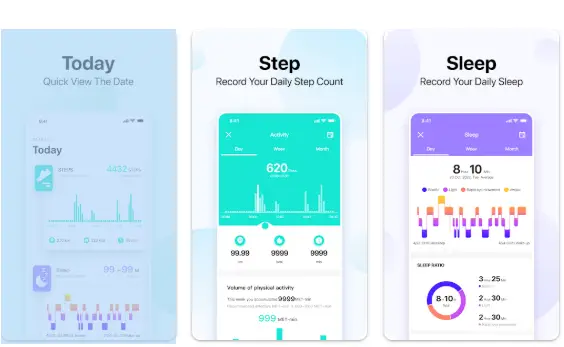
Da Fit App – is a popular application for cheap smartwatches With over 50 million downloads on Google Play Store alone, the app provides additional functionalities to the smartwatch as well as options.
