Tutorial – How to Setup Infinix XWatch H5 Pro Smartwatch to Phone
Here is a step by step tutorial on how to setup your new smartwatch, the Infinix XWatch H5 Pro smartwatch. The tutorial below is for your Android phone, but similar steps is also for iPhone. Check out the details below on how to connect or setup your XWatch H5 Pro to phone with My Health app.
How to Setup Infinix XWatch H5 Pro Smartwatch
- Scan the QR code of the application “My Health” app on Google Play Store. Or you can also search the app directly if you dont have the QR code.
- Tap on “Install” to download the application
- Open the application after the installation is complete
- Agree to “User Agreement and Privacy Policy”
- Setup your Profile
- Agree to Permission, “Access to Physical Activities”, “Send you Notifications”
- Tap on Devices Menu
- Tap the Add Button
- The My Health app will ask you to Register an Account
- After a successful login, agree to several permissions
- Turn on Location and Bluetooth connectivity
- Once everything is set, the app will search for your smartwatch
- When you smartwatch appear on the search dashboard, tap on it to connect
- Agree on the smartwatch for pairing with the support app
- You are now Connected
You Might Want to Read: ATMOS Drift 2X Smartwatch
About My Health App
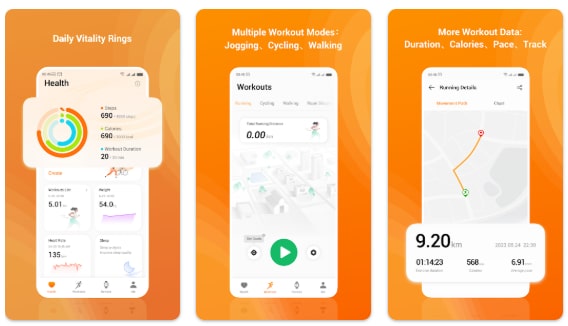
My Health is a pre-installed app on TRANSSION phones that connects with smart wearable devices, providing engaging and professional insights on activities such as running, step tracking, and weight management. Google Play Store
Infinix XWatch H5 Pro Smartwatch is a sport smartwatch with AMOLED screen display, It has a comprehensive list of sports, health and with Bluetooth call support. Sharp, crisp AMOLED screen with Bluetooth 6.0 connectivity, 300 mAh battery that last up to 18 days.
