Tutorial How to Connect HRYFine Smart watch to Phone 2026 Guide
Here is a 2026 guide for HRYFine Smart watch. Its an updated tutorial for HRYFine app tutorial for 2026. For the past several years, the app received several updates, making it right to revisit again the new process for connecting to smartwatches.
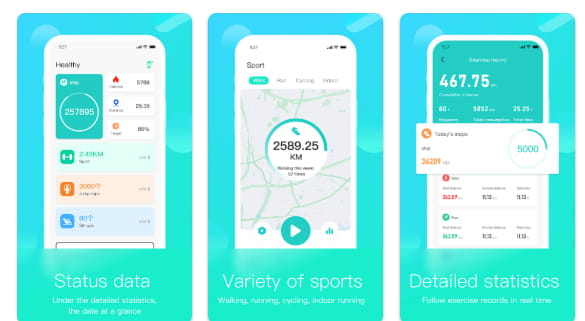
How to Connect HRYFine Smart watch to Phone
Table of Contents
- Scan the QR code of your HRYFine smart watch or iOS app store. Regarding the QR code, you can find it on the user manual or the box packaging. If you lost the box or user manual, it is certainly that the QR code is available in the smartwatch, usually its in the “Settings” section.
- Tap to download and install the application, as of this writing, the app version is 3.7 with over 50 million downloads.
- Once completed, tap Open to launch the HRYFine application for the HRYFine smart watch.
- Agree to “User Privacy and Terms of Agreement”
- The app will ask for permission to “Access your Physical Activty”, tap to Allow to Agree
- Another permission is for the Bluetooth call, “Access to phone call logs”. If you don’t like to use the Bluetooth call, you can deny the permission. The same with the “Access to Contacts”.
- Another permission is for the app to ‘Find, Connect to, and determine the relative path of nearby devices.
- For notifications, it will also ask for permission, you also have an option to deny if you are not going to use push notifications.
- Another feature for Bluetooth call ust he option to “Make and Manage phone calls”
- And the last one for messages is the option to “Send and View SMS messages”.
Login Form
- The app will ask you to register using your “email” or Google account. You can also skip and go to the dashboard directly. Tap “ I have read and Agree to Privacy Policy”.
- HRYFine will provide you an account and password, record it and tap “Confirm”
- Complete your Profile information, this includes the display name, sex, birthday, heart rate and weight.
- Before you can proceed to the “Dashboard: the app will ask permission to run in the background
- HRYFine app will ask to “Enable Notification Usage Permission”.
Pairing your HRYFine Smart watch
- On the Dashboard, select the “Mine” menu
- Select Search device, if Bluetooth is not yet activated, the app will ask permission to access location permission as well as Bluetooth connectivity.
- If every permission is OK, the app will automatically search for your wearable, and will appear on the search dashboard. Select the smartwatch, to pair it with your phone.
Setting the Basics
Message Reminder– to enable, disable message notifications for some apps, you need to go to the “Device Settings”. Then select Message Reminder, then tap the messaging app, toggleo n or off, depends, if you want to receive notification messages or not.
Setting Time – there are two options to set the time for your smartwatch. The settings for 12/24 hour format time and the option to synchronize it with the time of your phone.
To set the time, toggle off the 24 hour if you want to a 12 hour format time for synchronizing time, tap on the the “Synchronization System time” menu.
How to Add Phone Numbers
Tap on the “Me” menu, then select ‘Device Settings”, tap on “Phonebook, select the icon beside Address Book. Then select “Import”, select the phone number that you want to add on your smartwatch.
Downloading Dials
To download additional dials, go to “Dial” menus, then select Dial Mall, download the desired dial for your smartwatch.
You Might Want to Read:Colmi P77 Smartwatch
Problems that you Might Encounter when Setting your HRYFine Smart watch
When setting your HRYFine smart watch especially for the first time, it is not unusual that you will encounter some problems upon your setup. Below are some issues that may arises durig the setup process.
The app cannot find your HRYFine App smart watch – this is one of the common issues when setting up the wearable. Below are some things that you can do to possibly fix the issue.
>Restart your smartwatch or your smartphone
>Remove any devices that is using your Bluetooth connectivity
>Sometimes, the device is already added to the Bluetooth connectivity, select the device and tap to forget the devices
>Unstable Connectivity, the usual culprit for this is the low quality Bluetooth hardware, the device can only accept or connect few device. If this is the case, remove any smartwatches or devices that is using the connection. Let your smartwatch be the only one using the network.
You can also let the support app run in the background for stability
Details about HRYFine App
Version
3.7.29
Updated on
Dec 25, 2025
Requires Android
6.0 and up
Downloads
50,000,000+ downloads
