How to Connect My Health App to Android Phone 2026 Guide
Here is a tutorial to one of the popular support app for wearable, the My Health app, this application is available on Android and iOS platform. This is a step by step guide for 2026, easy to follow setup tutorial on setting your smartwatch with your Android phone. We also included a tutorial for fixing the issue with connectivity.
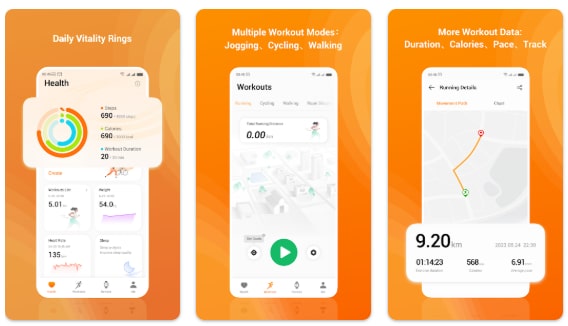
Tutorial on How to Connect My Health App for Android
- Pair your smartwatch to Android phone by downloading the support app, search the application on Google Play Store or Scan the QR code of the My Health app. It can be found on the User Manual, Smartwatch or the box.
- Tap on Install to download the application, it will automatically install the application once the download is complete.
- Select on “Open”
- Tap on Welcome to continue
- Agree on the User Agreement and Privacy Policy to continue
There are some information about the app, you can skip to go directly on the app dashboard
- Complete your Profile , this includes the Gender, Height, Weight, and Birthday, you can also Skip this form.
- Now you are on the Dashboard of the My Health App (Health, Workouts, Devices, Me)
- It will ask for permission, “Allow My Health to access your physical activity?”
- Allow My Health to send you notifications?
- Tap Devices Menu to start adding your smartwatch
- Before you can pair your wearable, you need to Login or Register an account
To Register, you will need an email account, and complete the Captcha, as well as get the Verification code.
- Upon successful registration, “ Login with the Captcha code, and the one time code
- The app will ask for permission, “Allow My Health to access this devices location”
- Permission, “Allow My Health to find, connect to, and determine the relative position of nearby devices.
- After the preliminary permissions, it will now search for the smartwatch
- When your device is found, select it to pair it with your support app
- Depending on the device, agree on the wearable if there is a notification asking to pair it with your wearable.
You Might Want to Read: iTel Horizon Smartwatch
Now you are Now Connected with the Smartphone
Setting the Basics
Configuring Push Notifications
Tap on Devices, then select Push Notifications, then allow permission to access to Notifications, tap Turn on. On the Device and App Notifications, look for the My Health app, then Allow Notification Access.
Enable the Notification for apps
Apps supported are, Youtube, Telegram, WhatsApp, Messages, Instagram, Messenger, Linkedln, and other option.
Problems Encountered by Users
- Issues with synchronization
- Smartwatch cannot be paired with the support app
- Unstable Connectivity
The above problems are the common issues that users encounter when pairing the smartwatch with the My Health App, whether its on Android or iOS platform. If you encounter one of the problems above, here are some things that you can do to fix the problem.
You can either restart your smartwatch or the smartphone if you are experiencing problems with synchronization. If you are having , and problems with the pairing, you can either reset the smartwatch, forget the device in the Bluetooth connectivity and pair the wearable again.
Unstable connectivity usually the cause for this is the Bluetooth connectivity, low quality Bluetooth, issue with compatibility and the like. If it is happening with your device, try to reinstall again the application, then remove any devices that is using the Bluetooth connectivity.
