How to Setup AOLON App on Android Smartphone
Here is a tutorial on how to connect your AOLON smartwatch to the AOLON app, the setup process is for the Android smartphone. See the step by step process on how to connect, pair your wearable with the support app, and your smartphone.
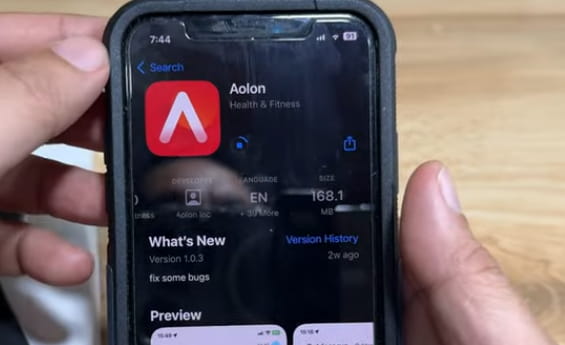
SETUP AOLON APP on Android Phone
- Search and Download the AOLON App from Google Play Store. You can also scan the QR code of the app on the packaging of your smartwatch. It is also available on the user manual and the smartwatch (settings)
- Tap Install to Download and Install the app on your Android smartphone, once the download it complete
- Now that the download is complete, Open the AOLON app
- Agree to User Privacy Policy Setting permission
- Register an Account with your email or phone number, you can also used your Google Account.
- After Logging in, tap the “Device” menu, located on the button part of the app
- Then select “Add Device”
- If the app ask you to activate “Bluetooth”, allow permission to enable Bluetooth connectivity
- The AOLON app will now search for your smartwatch
- When the smartwatch appeared on the search area, tap/select the smartwatch to pair it with the support app
- Depending on the smartwatch, a notification may appear on the smartwatch asking to accept the “Binding”
- You are now connected
You Might Want to Read: AOLON Ocean Ultra
Troubleshooting Issues with the Setup of AOLON App
If the app can’t find your smartwatch, check the following steps
- Check if Bluetooth is activated
- Restart your smartwatch or reset
- Restart your phone
Unstable connectivity of AOLON smartwatch
- Let the AOLON App run in the background
- Remove other devices that is using the Bluetooth connectivity
- Check if there is an update for the support app
