How to Set Business Card on Lenovo Watch Fit F101 Smartwatch
We have here a tutorial on how to set your own business card on your Lenovo smartwatch. Setting the Business card or QR code, is easy, at least 3 applications is supported, check out the details below.
Process On How to Set your Own Business Card on the Smartwatch
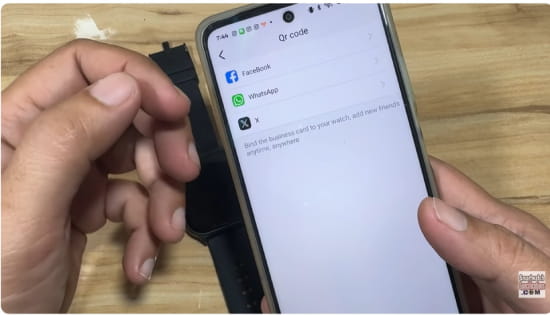
The Lenovo Watch Fit is equipped with a Business Card feature, it is available in the main menu of the wearable, just between the “Find Phone”, and “App Center”. If you want to access it, just tap on Business Card, then select the app, to show your business card. There are at least three option, X, Facebook, and WhatsApp.
If you haven’t set your business card yet, there is a note stating that you need to set your business on the app. “There is no business card with a QR code, please open the app, to bind a social QR code.’
You Might Want to Read: Atmos Drift 2X Smartwatch
How to set your own Business card for the above apps?
X (Twitter)
Open the X app and tap your profile icon, then go to Settings & Support > QR code. Your QR code will appear, and you can share or scan others directly from this section.
Open the Facebook app, tap the menu (☰), then search for or access QR Code in your settings or shortcuts, your profile QR code will be generated.
Open WhatsApp and tap the three dots (or settings icon), then select the QR code icon beside your name, your personal QR code will appear.
Now that you have your own QR code, you can now add it on the support app LenHealLife app, check out the details below.
- Open the LenHealLife App
- Tap on “Devices”
- Select “More commonly used functions settings”
- Tap on QR code menu
- There are at least 3 apps for the QR code, Facebook, WhatsApp, and X
- For example, you can to add a QR code for WhatsApp, tap on the WhatsApp menu
- Follow the instructions below
Open WhatsApp and save “My QR Code” to the local phone, Open LenHealLife, enter the device business card WhatsApp.
Click on the QR code area above to add or replace the WhatsApp QR code.
- After loading the QR code, tap on “Bind” to push the QR code on the smartwatch. You will receive a short notification when it is successfully bind.
- Open your smartwatch, then select the WhatsApp menu, it will now load the QR code.
You can now show this to your friends to let then add you to their contacts.
Please take note that the app is a bit tricky when adding your QR code. LenHealLife app recommends uploading a two dimensional code in black and white, to avoid any issue. You can also check our video tutorial on Youtube for more details.
