How to Connect AOLON Watch Tetra S5 Smartwatch to Phone
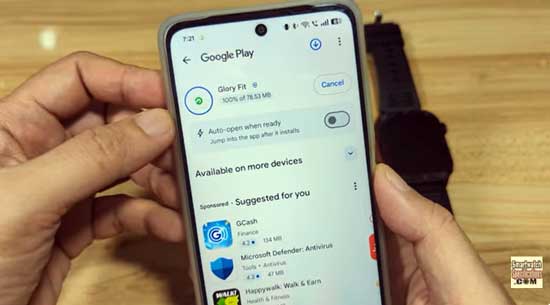
Here is a tutorial on how to download, and setup the support app for the AOLON Watch Tetra S5 Smartwatch to Phone. The smartwatch is using the Glory Fit application that is available on Android and iOS platform.
The AOLON Tetra S5 Smartwatch is a sports, outdoor, rugged smartwatch that is loaded with health, Bluetooth calls, and fitness functions. Check out the tutorial below on how to pair your wearable with the support app.
Tutorial on How to Connect Tetra S5 to Phone
Table of Contents
- Search the app on Google Play Store, or you can scan the QR code of the app on the smartwatch or user manual
- Tap to Install to download the application, wait for the completion of download. It will automatically install the app in the smartwatch.
- Open the Glory Fit app
- Agree to User Agreement and Privacy Policy
- You have an option to Login, Register or Skip, you can use your Google account as a third party login
- Set your Profile, this includes the gender, weight, height, goal settings and other information
- Select for your device, the app will ask to activate your Bluetooth connectivity if not activated.
- The Glory Fit app will ask for several permissions, this includes activation GPS connectivity, request to find position of Nearby Devices.
- If the smartwatch appeared on the search dashboard, tap on it to pair it with your smartwatch and support app.
- If the connection is successful, you will see the smartwatch on the app, along with Mac address, Address, battery, and smartwatch model.
Setting your Smartwatch Properly and Trouble shooting Errors
Device Not Showing During Pairing
If your smartwatch doesn’t appear during the pairing process, first ensure that Bluetooth is turned on. Then, open your phone’s Bluetooth settings and check if the watch is already listed among connected devices. If it is, select the smartwatch and tap “Forget This Device” before attempting to reconnect through the app.
Smartwatch Frequently Disconnects from the App
If your device keeps disconnecting, make sure you’re using the latest version of the Glory Fit app. Compatibility also matters—verify that your smartphone meets the system requirements for the smartwatch. If the issue persists, try restarting both your phone and the smartwatch to refresh the connection.
No Push Notifications on the Smartwatch
When your smartwatch isn’t receiving notifications, check that all necessary app permissions are granted. Within your phone settings and the Glory Fit app, ensure permissions are enabled.
You can download the application Glory fit App, on Google Play Store as well as the iOS App Store
